Graph Paper in a Document or Spreadsheet: A Printable Grid That Stays Square
Sooner or later a document needs a grid on it: a worksheet with squared working space under each question, a design sheet with a title block above the drawing, a tally form somebody will fill in by hand. The obvious move is to build the grid out of the tools already on screen, a table with its cell size turned down or a spreadsheet with narrow columns and short rows, and the obvious move is the one that comes out of the printer wrong. The cells are not square, the lines are too heavy, the grid shrank by four percent on the way to the paper, and nothing on screen said so. The reliable route is the other way round: make the grid somewhere that measures in inches and millimeters, size that sheet to the exact space it has to fill, and insert it as one picture. This article covers why cells drift, how to measure the hole in your page and print a sheet that fits it exactly, which of the two exports to use, how to insert it without rescaling it, how to get typed text to land on the printed lines, what to turn off in the print dialog, and when square spreadsheet cells really are the right answer.
Why a Table of Cells Drifts Out of Square
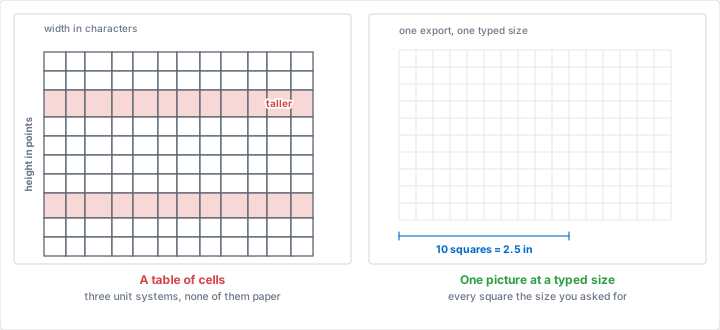
A grid made of cells is measured in three unit systems at once, none of which is the distance on paper between two printed lines.
In a word processor table, column widths are a share of the text area rather than a fixed length. Change the page margins, the paper size or the table's own width and every column is redistributed, so a table that was square at 1 inch margins is not square at 1.25. Row height is worse: by default it is a minimum rather than a fixed value, which means a row is at least that tall and grows to fit whatever is in it. One stray space typed into one cell makes one row taller than the other 39, and the only visible symptom is a grid that looks slightly off.
In a spreadsheet the two numbers are not even the same kind of thing. Row height is set in points, a real length, and column width is set in characters of the default font, which is not a length at all. A column width of 2 and a row height of 18 have no relationship you can calculate, and changing the workbook's default font changes the width of every column on every sheet without touching a single number.
Then the borders. Cell borders come from a short list of weights, and the lightest of them is usually about half a point, which is a reasonable rule under a line of text and a dark cage at quarter inch spacing. There is no 0.2 point option, and no way to make the grid lines pale without making them a color that photocopies badly. A printed grid wants a hairline in light gray, which is exactly what a border picker will not give you.
The practical arguments pile up on top of the arithmetic. A quarter inch grid across a Letter page is 34 columns by 44 rows, which is 1,496 cells for a document to carry and re-lay-out on every keystroke. Tables break across pages and repeat their header row. Spreadsheet print areas end where the data ends. None of it is fatal, and all of it is work that an image does not ask for.
Size the Sheet to the Hole It Has to Fill
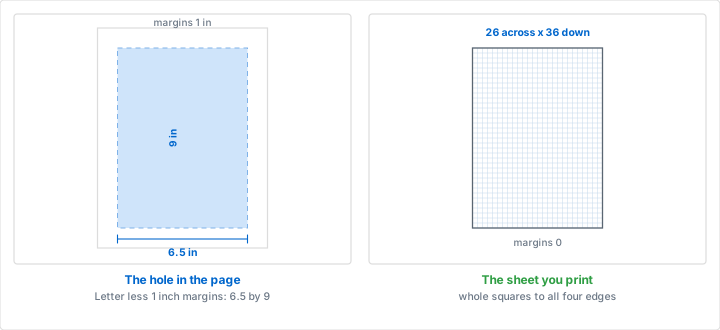
Here is the move the rest of the article rests on. The generator will print a sheet of any size you type, not just Letter and A4, and it will print it with no margins at all. So do not make a Letter sheet and then squeeze it into a page. Make a sheet that is exactly the size of the space the grid has to occupy, and insert it at exactly that size. Nothing is ever scaled, so nothing can come out of square.
Measuring the Hole
The hole is the page size minus the margins, which both live in the document's page setup. Two common cases:
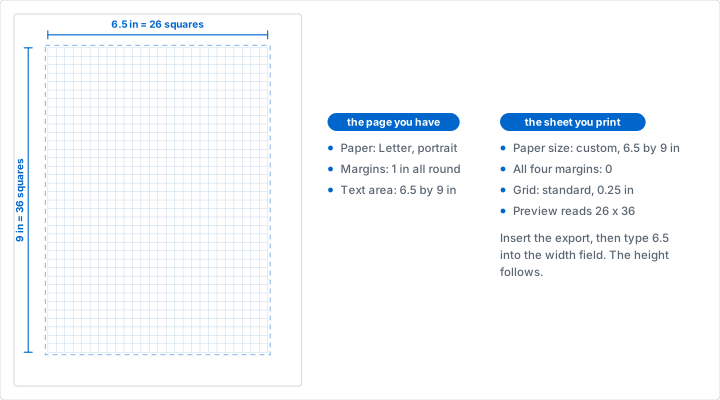
- Letter with 1 inch margins. The text area is 6.5 by 9 inches. At 0.25 inch squares that is 26 across and 36 down, both whole numbers, so the sheet is 6.5 by 9 and nothing is left over.
- A4 with 20 mm margins. The text area is 170 by 257 mm. At 5 mm squares that is 34 across and 51.4 down, so take 51 whole squares, which is 255 mm, and make the sheet 170 by 255.
Round the sheet down to a whole number of squares in both directions. The generator fills a sheet with as many complete squares as fit and leaves the remainder blank, so a sheet sized to 257 mm of 5 mm squares prints 255 mm of grid and a 2 mm white strip along the bottom edge. That strip is harmless but it is also avoidable, and a grid whose last row is a full row is the difference between a page that looks made and a page that looks exported.
Letter and A4, Worked Through
For the 6.5 by 9 inch sheet: set the measurement system to imperial, the paper size to Custom Size, the width to 6.5 and the height to 9, all four margins to 0, the grid style to the standard grid and the grid size to 0.25 inches. The line under the preview should read 26 squares across x 36 squares down. If it reads anything else, a margin is still set.
For the 170 by 255 mm sheet: set the measurement system to metric first, because it converts whatever is already in the fields, then Custom Size, the width to 170, the height to 255, the margins to 0, the grid unit to millimeters and the grid size to 5, in that order. The grid unit resets the grid size to its own default, so the size has to be typed last of all. The preview then reads 34 squares across x 51 squares down.
Set the line color to gray and the line weight to light for both. The default blue prints as blue, which is correct for a sheet you are going to draw on and wrong for a sheet that has typed text over it, where the grid should sit behind the words rather than compete with them. Gray at the light weight photocopies and scans more predictably too.
Which Export to Insert
The generator has two downloads and both give you the whole sheet with an opaque white background, not a transparent overlay.
The SVG is vector. It describes the lines as geometry, weighs a few kilobytes, and has no resolution to run out of, so the grid prints as thin as the printer can draw it at any size you place it. Current versions of the mainstream word processors and spreadsheets insert SVG as an ordinary picture.
The PNG is a raster, drawn at 300 dots per inch. A Letter sheet comes out 2550 by 3300 pixels, an A4 sheet 2481 by 3509, and the 6.5 by 9 inch sheet above 1950 by 2700. That is a print resolution, so a PNG placed at its true size prints cleanly; it only softens if you enlarge it well past the size it was made for, which is the one thing this method never does.
Take the SVG if the application accepts it, and the PNG if the SVG arrives as an empty box or a file icon, which is what an older version does. The same two exports are what our post on digital graph paper for tablet apps imports as page templates, for the same reasons.
One thing neither file carries is a physical size you can rely on. An SVG states a number of user units and a PNG states a number of pixels, and what either is worth in inches is decided by whatever opens it. That is not a flaw to work around, it is the reason the next step exists: the size you type after inserting is what makes the grid true, not the file.
Insert It, Then Type the Two Numbers
Insert the file as a picture, select it, find the width and height fields, and type the sheet's real dimensions: 6.5 and 9 for the Letter example, 170 and 255 mm for the A4 one. That is the whole operation. In Microsoft Word the fields are on the Picture Format tab in the Size group, and the same tab appears in Microsoft Excel. In Google Docs they are under Size and rotation in the image options panel.
Because the export is the whole sheet rather than a crop of it, the picture's aspect ratio is already the sheet's. Leave the aspect ratio locked and type the width: the height follows and comes out right. Full page sheets are worth checking once, because the export rounds its dimensions to whole pixels. A Letter sheet is exactly 816 by 1056 pixels, a ratio that gives 11 inches dead on from a typed width of 8.5. An A4 sheet is 794 by 1123, which gives 297.02 mm from a typed 210, an error of under two hundredths of a millimeter and far below the width of a printed line.
Never size the picture by dragging a corner handle. A drag is a percentage you cannot read back, it lands wherever the pointer stopped, and it is the single most common reason a printed grid measures 0.24 inches instead of 0.25.
Behind the Text, Not In Line With It
A freshly inserted picture usually sits inline, which means it lives inside a paragraph and moves whenever the text above it changes. For a grid that is the page's only content that is fine. For a grid that text has to sit on top of, change the wrap to behind text and set the position relative to the page rather than to the paragraph. The grid then stays where you put it while the words flow over it.
Position it by typing numbers here as well. If the sheet was sized to the text area, its position is the margin: 1 inch from the left edge of the page and 1 inch from the top, measured from the page rather than from the column.
Making the Text Land on the Lines
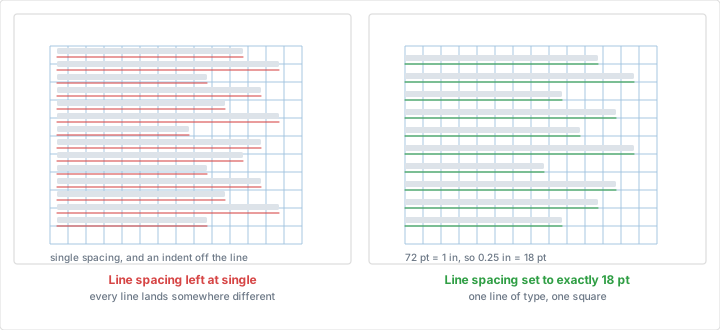
A grid behind typed text looks wrong until the lines of text sit on the lines of the grid, and then it looks deliberate. Getting there is one piece of arithmetic: there are 72 points to the inch, so any square size converts to a line spacing.
- 0.2 inch squares: 14.4 points
- 0.25 inch squares: 18 points
- 0.3 inch squares: 21.6 points
- 0.5 inch squares: 36 points
- 4 mm squares: 11.34 points
- 5 mm squares: 14.17 points
- 10 mm squares: 28.35 points
Set the paragraph's line spacing to exactly that number rather than to single or 1.15, and set the space before and after the paragraph to zero. Every line of text then advances by exactly one square. Choose a font size that fits inside the square with a little air: around 11 or 12 points of type in an 18 point line, or 9 points in a 14.17 point line.
The first line needs one adjustment, because a line of text sits on a baseline a little above the bottom of its line box. Nudge the picture, or the space before the first paragraph, until the first baseline sits on a printed line. Every line after it follows automatically, which is the point of exact spacing. Set the paragraph's left indent to a multiple of the square size as well, and the text block starts on a vertical line instead of a fraction of a square to the right of one.
This is the same arithmetic as ruling a sheet for handwriting practice, where the square size is chosen from the letter height rather than the type size, and as setting the x-height guides described in our post on calligraphy and hand lettering. A grid only helps writing when the writing is spaced in units of the grid.
Printing It at True Size
Everything above is undone by one checkbox, so this part is worth being fussy about.
Set the document's page size to the paper actually in the tray. A Letter document printed on A4 is rescaled by the driver whatever else you do. Then turn off every form of automatic fitting: fit to page, shrink oversized pages, scale to fit. In a browser print dialog the control is Scale, and its default setting fits the page to the printable area, which quietly shrinks it. Set the scale to 100 explicitly.
Printing from a document that lives in a browser adds a step rather than removing one. Google Docs prints by generating a PDF, so the scaling control that matters is the one in the PDF viewer or the browser print dialog that opens next, not anything inside the document. Make the PDF, then check the scale before it goes to paper.
Last, remember that most printers will not print within a few millimeters of the sheet edge. A grid sized to the text area never meets that limit. A grid sized to the whole sheet does, so either accept a clipped outer row or set the document margins to zero and let the printer trim what it must. Our printing tips guide works through the dialog settings printer by printer.
Check It With a Ruler Before You Print Thirty
Print one page and measure it. Measure ten squares rather than one, because a single square is too small to catch a few percent of error: at 0.25 inches, ten squares span exactly 2.5 inches, and at 5 mm they span 50 mm. Measure from the left edge of the first line to the left edge of the eleventh, not from the middles.
If ten quarter inch squares measure 2.4 inches, the page printed at 96 percent, which is the classic fit to page shrink. If they measure 2.5 across and something else down, the aspect ratio lock was off when the size was typed. Both are two minute fixes before a run of thirty copies and a long annoyance after it.
Square Cells in a Spreadsheet, If You Want Them
An image is the right answer when the grid is going to be drawn or written on. It is the wrong answer when something has to be typed into the squares and added up, and that case is common enough to deserve its own method.
Row height is the easy half: it is set in points, and 72 points is an inch, so 18 points is a quarter inch row and 14.17 points is a 5 mm one. Column width is the awkward half, because in the normal view it is measured in characters of the default font. The fix is the page layout view, where the same field accepts inches or centimeters directly; set the column width to the same quarter inch and the cells are square on paper as well as on screen. In Microsoft Excel the ruler unit comes from the display options, so set it to the system you are working in before typing widths.
Google Sheets measures both in pixels, which makes square cells on screen trivial, two equal numbers, and tells you nothing about paper. A pixel is not a length. What prints is decided in the print settings, so set the scale to Normal rather than Fit to width, and switch on the gridlines, which do not print by default in either application. A spreadsheet grid with the gridlines left off prints as a blank page.
Cells earn their place when the squares hold data: a tally sheet that totals itself, a stitch count, a cost per square foot. That last one is also the honest boundary. Anything that has to be a measured drawing, a floor plan or an elevation, belongs on a printed grid instead, which is how our room layout tutorial works, and a colorwork chart is far quicker to fill in by hand on paper than cell by cell, as our post on cross stitch and knitting patterns describes. A spreadsheet of colored cells is a usable substitute for pixel art on graph paper and never a pleasant one.
When You Do Not Need the Document at All
It is worth asking, because half the time the document is only there because it is how you normally print things. If all you need is a sheet of grid, print it from the generator and skip every step above: the paper size, the margins and the square size are already in the right units, and there is no insert and no rescale to get wrong.
The document earns its place when the page carries something the grid cannot: a question above the working space, a name and date line, a title block, a legend, a logo, instructions that have to be typed rather than written. That is the real test. Text on the page means a document; a grid on its own means a print.
The other reason to start in the generator is that a table of cells only ever makes squares. The grid you need may not be square at all: dot grid paper for a page that should not show a grid in a scan, engineering paper with a heavier line every fifth square for reading values off a plot, isometric paper for anything three dimensional, hexagonal paper for ring structures and maps, polar paper for angles, logarithmic paper for data that spans decades. Each of those goes into a document exactly the same way, and none of them can be built out of cells at all. A worksheet that needs axes drawn on it, in the manner of our math graphing tutorial, is a square grid plus two ruled lines, since the generator prints no axes of its own.
Choosing Your Settings
| What the grid has to fill | Sheet size, margins 0 | Grid size | Squares | Size to type in |
|---|---|---|---|---|
| Letter text area, 1 in margins | Custom, 6.5 x 9 in | 0.25 in | 26 x 36 | 6.5 x 9 in |
| A4 text area, 20 mm margins | Custom, 170 x 255 mm | 5 mm | 34 x 51 | 170 x 255 mm |
| A whole Letter page, behind text | Letter, 8.5 x 11 in | 0.25 in | 34 x 44 | 8.5 x 11 in |
| A whole A4 page, behind text | A4, 210 x 297 mm | 5 mm | 42 x 59 | 210 x 297 mm |
| A half page figure in a report | Custom, 6.5 x 4.5 in | 0.25 in | 26 x 18 | 6.5 x 4.5 in |
| A working box under a question | Custom, 3 x 3 in | 0.2 in | 15 x 15 | 3 x 3 in |
Every row uses the standard grid in gray at the light weight, with all four margins set to 0 in the generator. Two rows do not come out even: a whole A4 page at 5 mm holds 59 complete rows, which is 295 mm, so 2 mm of the sheet is left blank at the bottom, and a whole Letter page is 34 by 44 squares with nothing left over. Check the square count under the preview against this table before downloading. If it disagrees, a margin or the grid unit has been changed.
Mistakes That Put the Grid Out of Square
Mistake: Leaving Fit to Page Switched On
Problem: The grid was built correctly and sized correctly, and the print dialog shrank the whole page to fit the printable area. Every square comes out a few percent small, and because they are all small together, nothing looks wrong.
Solution: Set the scale to 100 explicitly, not to the default, and measure ten squares on the first sheet. A quarter inch grid that spans 2.4 inches over ten squares printed at 96 percent.
Mistake: Sizing the Picture by Dragging a Handle
Problem: The picture was dragged until it looked right against the margin guides. It landed at 97 or 103 percent of the size it needed, which no ruler mark on screen was fine enough to show.
Solution: Type the width into the size field with the aspect ratio locked. The height follows, and the number is there to read back next time.
Mistake: A Full Sheet Dropped Inside the Margins
Problem: A whole Letter sheet of 0.25 inch squares was inserted into a document with 1 inch margins, where it was fitted to the 6.5 inch text area. That is a scale of 0.765, so every square prints at 0.191 inches and the grid is no longer a quarter inch grid in any useful sense.
Solution: Either size the sheet to the text area, 6.5 by 9 inches, or set the picture to sit behind the text and position it on the page corner at its full 8.5 by 11.
Mistake: Building the Grid Out of Cells
Problem: Forty rows and thirty columns were sized by hand. One cell holds a stray space, so its row is taller; the margins were changed after the table was made, so the columns redistributed; and the thinnest available border is still twice as heavy as a grid line should be.
Solution: Use cells only when the squares have to hold data that gets calculated. For a grid that is drawn on or written on, one picture at a typed size cannot drift.
Mistake: Screenshotting the Preview
Problem: The grid was captured off the screen instead of downloaded. A screenshot holds whatever pixels the preview happened to be displayed at, which is a fraction of the 2,550 across a Letter PNG carries, so the printed lines are soft and unevenly thick, and the capture includes a strip of the page around the sheet.
Solution: Use the download buttons. The SVG has no resolution at all to lose and the PNG is drawn fresh at 300 dots per inch, both cropped to the sheet.
Conclusion
A grid in a document fails for one reason: something between the square size and the paper multiplied it by a number nobody typed. Cells get redistributed, handles get dragged, print dialogs fit to page. Every one of those is a scale factor you did not choose.
So take the scaling out. Measure the hole in your page, print a sheet that is exactly that size with the generator's margins at zero, export it, insert it, and type the same two numbers back. Then measure ten squares on the first sheet out of the printer. It is a five minute routine, it works the same way in a word processor and a spreadsheet, and it is the only version of this job that still measures a quarter inch after it has been through a printer.
Print a Grid Sized to Your Page
Set the paper size to the space the grid has to fill, drop all four margins to 0, and download the SVG or the 300 DPI PNG. Free, with no account and nothing to install.
Create Your Grid SheetRelated Resources
- Digital Graph Paper for Tablet Apps: the same two exports, imported as page templates instead
- Professional Printing Tips: the print dialog settings that keep a square a square
- Engineering Graph Paper: a heavier line every fifth square, which no table of cells will give you
- Dot Grid Paper: the ruling to insert when the grid should not show up in a scan
- Handwriting Practice on Graph Paper: the same line spacing arithmetic, for writing rather than typing
- Mathematics Graphing Tutorial: axes and scales for a worksheet you are about to hand out
- Graphing Science Lab Data: when the plot has to be drawn by hand and still satisfy a report
- Back-to-School Graph Paper: which grid each subject needs before you build the worksheet
Microsoft Word and Microsoft Excel are trademarks of Microsoft Corporation, and Google Docs and Google Sheets are trademarks of Google LLC. Graph Paper Generator is independent and is not affiliated with, sponsored by or endorsed by Microsoft Corporation or Google LLC. The names are used here only to identify the applications these steps were written against, and menu labels move between versions, so treat them as a description of the mechanism rather than a path to follow exactly.