Creating Pixel Art on Graph Paper: From Grid Squares to Game Sprites
Graph paper is the original pixel grid. Before screens existed, game designers sketched sprites and characters on graph paper where each square represented one pixel. The retro gaming sector is now worth an estimated $3.8 billion and growing, and pixel art is thriving across indie games, fashion, and home decor. Whether you want to design game sprites, create wall art, or pick up a satisfying analog hobby, graph paper is the simplest way to start.
What Makes Pixel Art Work
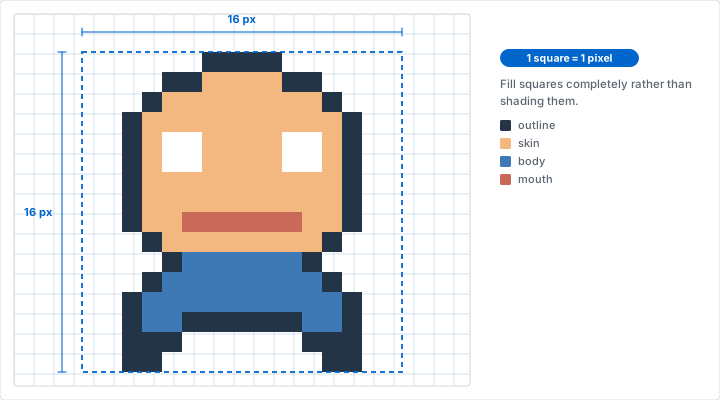
Constraints breed creativity. Pixel art's appeal comes from working within a limited grid. Each square is either filled or empty -- or a specific color. There are no gradients, no smooth curves, just deliberate square-by-square decisions. Every single pixel matters, and that forces you to think carefully about shape, proportion, and readability.
This is exactly why graph paper is the perfect medium for pixel art. The grid is already there. You do not need to draw your own rows and columns or count spacing. Each printed square becomes one pixel, and the structure keeps your work aligned without any extra effort.
Pixel art on paper also removes the distraction of software tools. There is no undo button, no layer panel, no color picker with 16 million options. You work with a pencil, a handful of markers, and the grid in front of you. That simplicity is the point.
Why Pixel Art Is Thriving
Pixel art is not just nostalgia. Indie game studios choose pixel art because a solo artist can produce a complete game's worth of assets in the time it would take to model a single 3D character. The deliberate, handcrafted look of pixel art communicates care and intentionality that resonates with players. Games like Celeste, Stardew Valley, and Shovel Knight prove that pixel art can compete commercially with any visual style.
Choosing Your Grid Size
The grid size you print determines how many pixels fit on your page and how large each pixel-square will be to color in. Different grid sizes suit different sprite sizes and skill levels.
Grid Size to Canvas Size (US Letter, 8.5 x 11 inches)
- 1/2 inch grid: Fits roughly 16x22 pixels. Large squares that are easy to fill with color. Best for beginners and young artists.
- 1/4 inch grid: Fits roughly 32x44 pixels. Good for characters, small scenes, and most standard sprite work.
- 1/8 inch grid: Fits roughly 64x88 pixels. Suitable for detailed scenes, larger sprites, and multi-character compositions.
Standard Game Sprite Sizes
Classic game sprites use power-of-two dimensions: 8x8, 16x16, 32x32, and 64x64 pixels. When you plan your graph paper pixel art, mark out one of these standard canvas sizes on your grid before you start drawing. This keeps your work compatible with game engines if you decide to digitize it later.
For a deeper breakdown of how grid spacing affects your projects, see our guide to choosing the right grid size.
Sprite Sizes and What They Are Good For
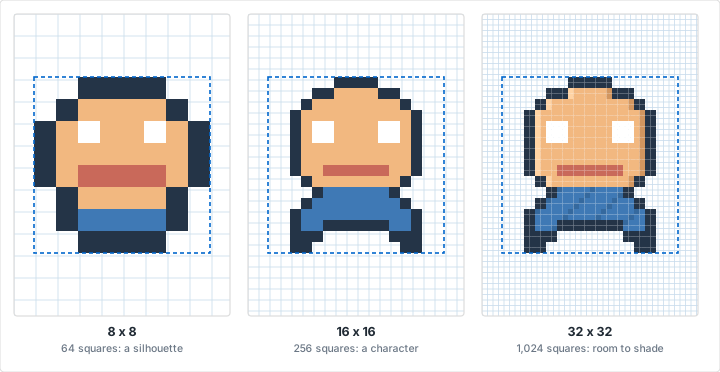
Each standard sprite size has a sweet spot in terms of detail and use case. Knowing what works at each resolution saves you from attempting detail that simply will not fit.
8x8 Pixels
Best for: Icons, collectible items, small objects, tile-based terrain. At 8x8, you have 64 total squares. That is enough for a recognizable apple, key, coin, heart, or potion bottle. It is not enough for a detailed face. Think simple silhouettes and bold shapes.
16x16 Pixels
Best for: Classic game characters, UI elements, and small enemies. This is the resolution of the original Mario and Zelda sprites. You have 256 squares to work with -- enough for a recognizable character with basic features, a two-frame walk cycle, and simple shading.
32x32 Pixels
Best for: Detailed characters with recognizable facial features, enemies with distinct silhouettes, and environment tiles with texture. At 1,024 squares, you can include eyes, hair detail, clothing patterns, and multiple shading levels.
64x64 Pixels
Best for: Large characters, boss sprites, detailed portraits, and complex scene tiles. This size requires a fine grid (1/8 inch or smaller) to fit on standard paper. It is best attempted after you are comfortable with smaller sizes.
Outlining Your Sprite Area
Before you draw anything, count out your chosen sprite dimensions on the graph paper and draw a bold border around that area with a ruler. This boundary keeps you from accidentally expanding beyond your pixel budget. Mark the center lines (horizontal and vertical) lightly in pencil -- they help with symmetry when drawing faces and characters.
Drawing Your First Sprite
Follow these steps to create your first pixel art character on graph paper. A 16x16 sprite on 1/4 inch grid paper is the best starting point.
Step 1: Choose Your Canvas Size
Count out a 16x16 square area on your graph paper. Draw a firm border around it with a ruler and pencil. Label the sprite name or number above or below the border if you are planning multiple sprites on one sheet.
Step 2: Sketch the Silhouette
Using a light pencil, outline the overall shape of your character or object. Do not worry about individual pixels yet. Just block in the general form -- where the head sits, where the body ends, how wide the arms extend. The silhouette is the single most important element of any sprite.
Step 3: Fill the Outline Pixel by Pixel
Now refine your pencil sketch into clean, square-by-square decisions. Each grid square is either inside the shape or outside it. Fill the squares that fall inside your silhouette. Erase any squares that fall mostly outside. Curves become staircase patterns -- that is normal and expected in pixel art.
Step 4: Add Detail
With the silhouette established, add internal details: eyes, mouth, buttons, belt, weapon, or whatever defines your character. At 16x16, eyes are typically 1-2 pixels each. Less is more. A single dark pixel for an eye reads clearly at small sizes.
Step 5: Apply Color
Choose your limited palette (more on this below) and fill each square with the appropriate color using markers or colored pencils. Work from light colors to dark to avoid smudging. Leave the outline pixels for last if you are using a dark border style.
Step 6: Review and Refine
Hold your finished sprite at arm's length. Can you still tell what it is? If the shape reads clearly from a distance, you have a strong sprite. If it looks like a blob, the silhouette needs work. Photograph it with your phone and shrink the image to actual pixel size to see how it will read on screen.
Work in Pencil First
Complete Steps 1 through 4 entirely in pencil before applying any color. Pencil is forgiving -- you can erase and adjust individual pixels without ruining the whole piece. Once the shape and details look right in graphite, commit to ink or color. This two-pass approach saves time and materials, especially when you are learning.
Color Techniques for Paper Pixel Art
Limited Palettes
Retro game consoles used strict color limits. The original Game Boy had 4 shades of green. The NES allowed 4 colors per sprite (including transparent). The SNES expanded to 16 colors per palette, but most sprites still used far fewer. Working within a limited palette -- 4 to 8 colors per sprite -- is not just historically accurate, it produces better-looking pixel art. Fewer colors force stronger contrast and cleaner reads.
A practical starting palette for your first sprite: one dark color for outlines, one base/mid-tone for the main body, one lighter shade for highlights, and one accent color for a distinguishing feature (a red hat, a blue gem, a green leaf). Four colors is enough to make a readable, appealing sprite at any size from 8x8 to 32x32.
Markers vs. Colored Pencils
Your coloring tool affects the final look more than you might expect.
- Markers: Fill squares with even, flat color that closely mimics on-screen pixels. Alcohol-based markers blend smoothly and produce consistent saturation. Use them on heavier paper (90gsm or above) to prevent bleed-through to the reverse side. Let each color dry before filling adjacent squares to avoid unintended blending at borders.
- Colored pencils: Allow lighter pressure for shading and layering. Better for gradual tonal variation and dithering effects. Softer wax-core pencils fill squares more smoothly than hard-core pencils. The tradeoff is less uniform coverage -- pencil strokes can show texture within individual squares, which may or may not suit your style.
- Fine-tip felt pens: A middle ground. They fill small grid squares quickly with reasonably flat color. Less expensive than professional markers and available in wide color ranges. Best suited for 1/8 inch and 1/4 inch grid sizes.
Dithering on Paper
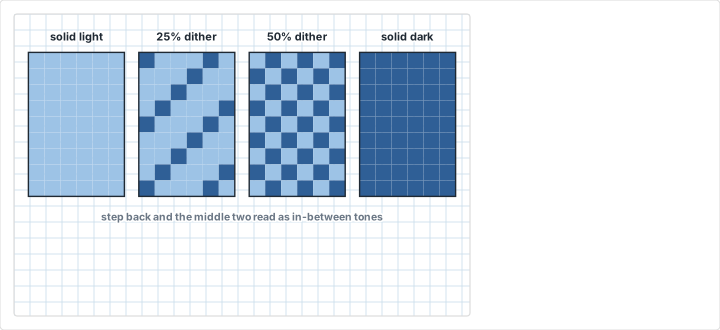
Dithering is the technique of alternating two colors in a checkerboard pattern to simulate a third, intermediate color. On graph paper, this is straightforward: fill alternating squares with color A and color B. From a distance, the eye blends them into a perceived third shade.
Use dithering for shadows, gradients, and transitions between two flat colors. For example, if your character has a blue shirt and you want a shadow on one side, dither the shadow area with alternating blue and dark blue squares instead of introducing a completely new color. This technique was used extensively in 8-bit and 16-bit era games to stretch limited color palettes.
Creating a Color Key
In the margin of your graph paper, draw a small legend: one filled square for each color in your palette, labeled with the marker or pencil name and number. This keeps your colors consistent across multiple sprites and gives you a reference if you return to the project days later. If you are creating a set of related sprites (a character, their enemies, and item pickups), use the same color key for the entire set to maintain visual cohesion.
Pixel Art Techniques
Anti-Aliasing
Anti-aliasing means adding intermediate-shade pixels along curves and diagonal edges to smooth the staircase effect. Where a dark shape meets a light background along a diagonal, place a mid-tone pixel at the jagged corners. On paper, this means using a third color (between your outline color and your background) at specific transition points.
Use anti-aliasing sparingly and only on larger sprites (32x32 and above). At 8x8 or 16x16, every pixel is too valuable to spend on smoothing -- and over-applied anti-aliasing makes small sprites look blurry rather than clean. When you do use it, limit yourself to one intermediate shade per edge.
Outlines vs. No Outlines
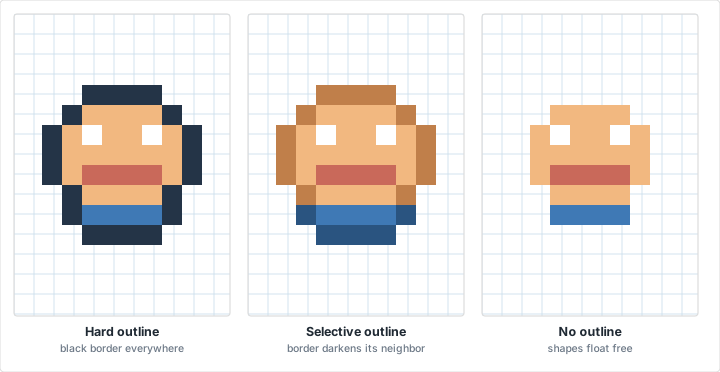
The outline style you choose defines the overall feel of your pixel art.
- Dark outlines: Give sprites a bold, cartoon look. The character pops against any background. This is the classic NES and SNES approach. On paper, draw the full black border first, then fill the interior colors. This approach is forgiving of small coloring errors because the outline contains the shape.
- Selective outlines (selout): The outer edge uses a darker shade of the adjacent fill color instead of black. A red sleeve gets a dark red border pixel, a blue hat gets a dark blue border pixel. This creates a softer, more modern appearance. More difficult to execute on paper because you need to plan each border pixel's color in advance, but the results look polished.
- No outlines: The sprite has no border at all -- just filled color areas. This works best for environment tiles and backgrounds where you want elements to blend together seamlessly. Less common for characters because they need to stand out from the background.
Shading and Light Direction
Pick a consistent light source direction before you start shading -- top-left is the most common convention in pixel art. The side of the character facing the light gets the base color. The opposite side gets a darker shade. Highlights (a lighter shade) go on the top edges and surfaces closest to the light source.
Consistency matters more than realism. If the light comes from the top-left on one sprite, it should come from the top-left on every sprite in that set. Mixed lighting directions across a sprite sheet make the game look incoherent. On your graph paper, draw a small arrow in the corner indicating your light direction as a constant reminder while you work.
Sub-Pixel Animation
Sub-pixel animation creates the illusion of movement smaller than one pixel by shifting colors between adjacent squares across frames. On paper, you draw multiple frames of the same sprite in separate grid areas on the same sheet. Each frame shifts detail by one pixel in the direction of movement. Flip between them quickly (or photograph and animate digitally) to see the motion.
A practical example: to animate a character's eye blinking, frame 1 shows the eye as two light pixels. Frame 2 changes the top eye pixel to the skin color. Frame 3 changes both eye pixels to skin color (eyes closed). Frame 4 reverses back. On graph paper, draw all four frames in a row so you can compare them at a glance.
From Paper to Screen
Graph paper pixel art makes an excellent blueprint for digital sprites. Here is how to bring your paper creations into software.
Photographing or Scanning
Use a flatbed scanner at 300 DPI or higher for the cleanest capture. Scanning preserves exact proportions and eliminates perspective distortion. If you do not have a scanner, a phone camera works well with the right setup: shoot in bright, even lighting with the camera positioned directly above the page (not at an angle). Use your phone's document scanning mode if available -- it automatically corrects minor perspective skew.
After capturing, increase the contrast and reduce the brightness slightly in your photo editor. This makes the grid lines fade and the filled color squares pop, giving you a cleaner reference image to work from.
Recreating in Pixel Art Software
Open your scan as a reference image and recreate the sprite pixel-by-pixel in dedicated software. Free options include Piskel (browser-based, no install needed, great for beginners) and GIMP (full-featured image editor with pixel-level zoom and advanced color tools). Aseprite is a paid tool widely used by professional pixel artists for its animation timeline, onion skinning, and palette management.
Set your digital canvas to the exact sprite dimensions (16x16, 32x32, etc.) and zoom in to maximum magnification. Place your scanned paper version beside the software window and transfer each pixel one at a time. This is faster than it sounds -- a 16x16 sprite takes most people under 10 minutes to recreate digitally.
One Square Equals One Pixel
The translation is direct. Each filled square on your graph paper becomes one filled pixel on screen at the same grid coordinate. Your paper version is the design reference -- the digital version is the production asset. Many professional pixel artists still start on paper before touching software, because the constraints of pencil and grid force cleaner design decisions up front. The paper stage catches proportion errors and silhouette problems that are harder to see when zoomed in to a pixel editor.
Project Ideas by Skill Level
Beginner: 8x8 Items
Start with simple, recognizable objects at 8x8 resolution on a 1/2 inch or 1/4 inch grid. Try drawing an apple (red circle with a green pixel for the leaf and a brown pixel for the stem), a mushroom (dome cap in red with white spots, narrow stem below), or a potion bottle (narrow neck, wide base, colored liquid fill). These teach you to work within tight pixel budgets and make every square count.
Draw three to five different 8x8 items on the same sheet. Keeping them close together lets you compare silhouettes, color usage, and style consistency. If one item is immediately recognizable and another is not, study what makes the successful one work.
Intermediate: 16x16 Animated Character
Design a game character at 16x16 and draw two frames of a walk animation side by side on the same sheet. Frame 1: left foot forward, right arm forward. Frame 2: right foot forward, left arm forward. Keep the head and torso identical between frames -- only the legs and arms change position. This teaches you sprite consistency and the basics of frame-by-frame animation planning.
Once you have the walk cycle, try adding a third frame: the idle standing pose. The idle frame is what the player sees most often, so it should be the most polished of the three. Use the same color key and light direction across all frames.
Advanced: 32x32 Scene Tile
Create a 32x32 environment tile -- a small house with a door and window, a tree with a detailed canopy, or a grass landscape tile that seamlessly repeats when placed next to copies of itself. Tiling requires the left edge to match the right edge and the top to match the bottom. Mark those edge pixels carefully before you start the interior detail.
To test your tile on paper, draw the same 32x32 design in a 2x2 arrangement (four copies touching at the edges). If the seams are invisible and the pattern flows naturally across boundaries, you have a working tile. If hard lines appear at the borders, adjust the edge pixels until the transition is smooth.
Common Mistakes
Mistake: Starting Too Large
Problem: Jumping straight to 64x64 sprites overwhelms beginners. You end up with 4,096 squares to fill, lose track of proportions, and abandon the project halfway through.
Solution: Begin with 8x8 or 16x16 sprites. Master the fundamentals of silhouette, color, and readability at small sizes before scaling up. The skills transfer directly -- larger sprites are just more of the same decisions.
Mistake: Using Too Many Colors
Problem: Reaching for every marker in the box creates noisy, unfocused sprites that lack cohesion. Retro sprites used 3-4 colors for a reason.
Solution: Limit yourself to 4-8 colors per sprite. Choose one base color, one shadow tone, one highlight, and one accent. A tight palette forces you to communicate form through value contrast rather than color variety.
Mistake: Ignoring the Silhouette
Problem: Adding detail (eyes, buttons, patterns) to a weak overall shape. If the sprite does not read as a recognizable form when filled with a single solid color, no amount of interior detail will save it.
Solution: Before adding any detail or color, fill your entire sprite shape with one solid color and evaluate it. Can you tell what it is? Does it look distinct from other sprites in the set? Fix the silhouette first, then add detail.
Mistake: Not Checking Readability at Small Size
Problem: The sprite looks great at the size you drew it on paper, but when viewed at actual pixel size on screen (or from across the room), the detail turns to mush.
Solution: Photograph your sprite and shrink the image to actual pixel dimensions on your phone or computer. Or hold the paper at arm's length and squint. If key features disappear, simplify until they read clearly at the intended display size.
Conclusion
Graph paper gives you everything you need to start creating pixel art: a consistent grid, clear boundaries, and the constraint that makes the art form work. You do not need software, a drawing tablet, or any digital tools to design sprites that hold up against professional work. Start with an 8x8 item, work up to 16x16 characters, and let the grid guide every decision. The squares are already there -- fill them in.
Ready to Create Pixel Art?
Generate custom graph paper sized for your pixel art project. Choose your grid spacing, set your paper size, and print.
Create Graph Paper NowRelated Resources
- How to Choose the Right Grid Size
- Design Sketching on Graph Paper
- Dot Grid Paper
- Professional Printing Tips
- Graph Paper Use Cases
- Isometric Graph Paper
- Isometric Drawing on Graph Paper -- why most "isometric" game tiles are actually a 2:1 ratio
- Composing Music on Graph Paper -- another one-cell-at-a-time craft
- The Grid Method for Drawing
- Coordinate Graphing Mystery Pictures: the same corner-to-corner drawing, written down as ordered pairs
- Pumpkin Carving Patterns on Graph Paper: a pixel design where every square is cut or kept