Graph Paper Printing Tips
Professional tips and troubleshooting guide for printing perfect graph paper every time
Essential Printer Settings
Paper Size Selection
The most critical setting for accurate graph paper printing. See our paper sizes guide for a full breakdown of Letter, A4, and other formats.
- Match exactly: Printer paper size must match your generated graph paper size
- Common mistake: Generating A4 but printing on Letter (or vice versa)
- How to check: Verify printer properties before clicking Print
- Custom sizes: Select "Custom" or "User Defined" and enter exact dimensions
Scaling and Fit
Critical for maintaining accurate grid dimensions:
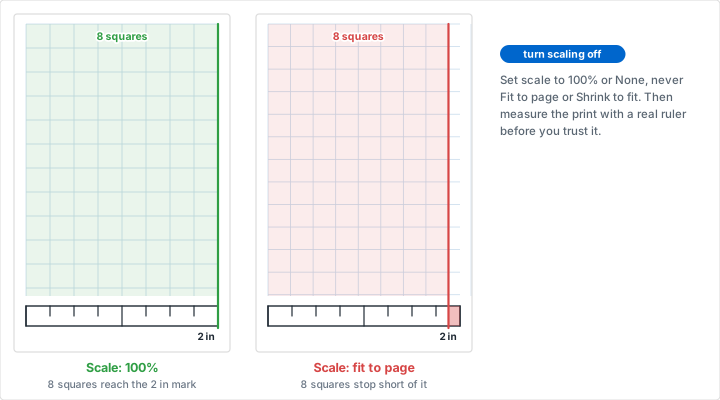
- Set to 100%: Never use "Fit to Page" or "Shrink to Fit"
- Actual size: Select "Actual Size" or "No Scaling" option
- Why it matters: Scaling changes grid spacing and measurements
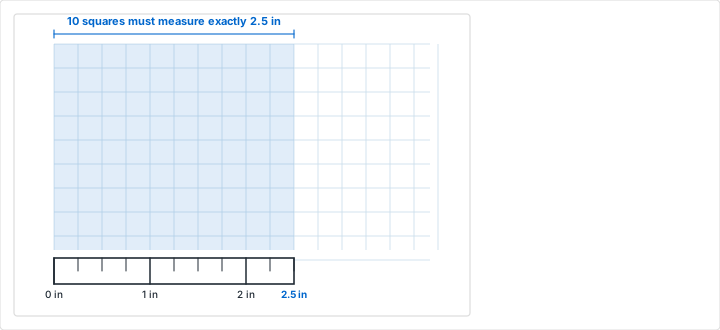
- Verification: Measure printed grid with a ruler to confirm accuracy
Orientation
Match the orientation to your graph paper design:
- Portrait: Taller than wide (most common for Letter/A4)
- Landscape: Wider than tall (useful for wide graphs)
- Auto-detect: Some printers detect automatically, but verify
Quality and Resolution
Affects line sharpness and clarity, especially for fine grids. See our grid size selection guide for how grid density and line weight interact.
- Draft mode: Faster, uses less ink, adequate for practice
- Normal mode: Good balance for everyday use
- Best/High quality: Crisp lines for professional work
- DPI: 600 DPI or higher for finest grid lines
Color vs Black and White
Consider your needs and costs:
- Black and white: Economical, professional, easier to photocopy
- Grayscale: Softer lines, less distracting for writing
- Color: If you've customized grid color (blue/green common)
- Ink saving: Use draft mode or grayscale to reduce ink use
Paper Selection
Paper Weight
- 20 lb (75 gsm): Standard copy paper, economical, good for most uses
- 24 lb (90 gsm): Heavier, more durable, less show-through
- 28 lb (105 gsm): Premium weight, minimal bleed, professional feel
- 32 lb+ (120+ gsm): Card stock, for archival or presentation work
Paper Finish
- Matte: No glare, best for pencil/pen work, easy to erase
- Bright white: High contrast with grid lines
- Recycled: Environmentally friendly, slight off-white color
- Heavyweight: For repeated use or important documents
Specialty Papers
- Vellum: Translucent for overlays and tracing
- Engineering bond: Specifically designed for technical drawings
- Waterproof: For outdoor use or wet conditions
- Archival: Acid-free for long-term storage
Common Printing Problems and Solutions
Problem: Grid is Scaled or Distorted
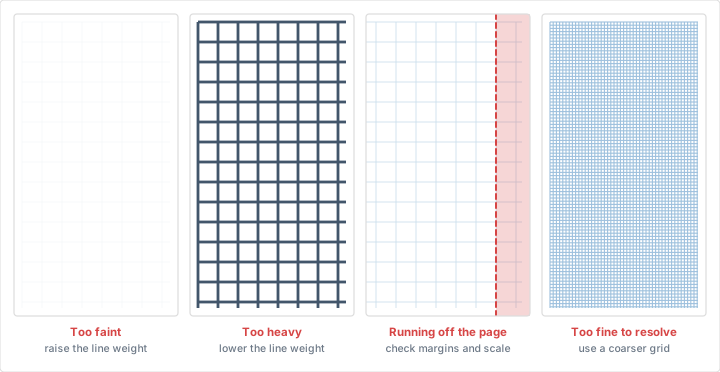
Symptoms: Grid squares aren't actually square, or dimensions don't match expectations
Solutions:
- Set printer scaling to 100% or "Actual Size"
- Disable "Fit to Page" or "Shrink to Fit"
- Verify paper size matches generator settings
- Check print preview before printing
- Measure first print with a ruler
Problem: Grid is Cut Off or Margins Wrong
Symptoms: Edges of grid missing, uneven margins, content off-center
Solutions:
- Check printer's minimum margin requirements (typically 0.25")
- Adjust margins in graph paper generator
- Enable "Borderless" printing if supported
- Use manual feed for non-standard sizes
- Verify paper is loaded correctly in tray
Problem: Lines are Faint or Broken
Symptoms: Grid lines barely visible, incomplete lines, gaps
Solutions:
- Increase line weight in generator
- Switch from draft to normal/best quality
- Check ink/toner levels
- Clean print heads (inkjet) or drum (laser)
- Replace old cartridges
Problem: Lines are Too Heavy or Smeared
Symptoms: Thick, blurry lines, ink bleeding, smudging
Solutions:
- Reduce line weight in generator
- Use draft mode for lighter lines
- Allow ink to dry before handling
- Use paper designed for your printer type
- Clean printer and check for clogs
Problem: Paper Jams or Feeding Issues
Symptoms: Paper won't feed, jams halfway, misaligned prints
Solutions:
- Fan paper stack before loading
- Don't overfill paper tray
- Check for torn pieces in feed path
- Use manual feed for heavy stock
- Ensure paper is within printer's weight specs
Browser-Specific Printing Tips
Google Chrome
- Click Print button or Ctrl/Cmd+P
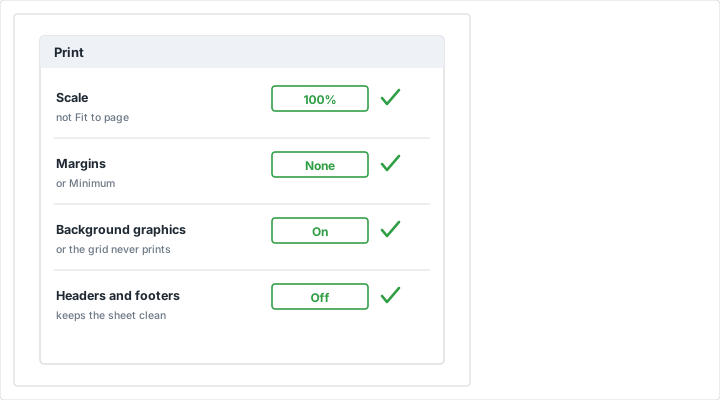
- Under "More settings", set Scale to 100%
- Ensure "Margins" is set appropriately
- Disable "Headers and footers"
- Use "Print using system dialog" for more options
Mozilla Firefox
- File → Print or Ctrl/Cmd+P
- Under "Page Setup", set Scale to 100%
- Check "Shrink to fit page width" is OFF
- Disable headers/footers in Page Setup
- Consider printing to PDF first to verify
Safari (Mac)
- File → Print or Cmd+P
- Ensure Scale is 100%
- Click "Show Details" for full options
- Uncheck "Print headers and footers"
- Use Preview to verify before printing
Microsoft Edge
- Click Print button or Ctrl+P
- Expand "More settings"
- Set Scale to 100%
- Choose correct paper size
- Use "Print using system dialog" for advanced options
Saving Paper and Ink
Economical Printing Strategies
- Draft mode: Use for practice or temporary work
- Lighter weight: Reduce line weight to use less ink
- Grayscale: Often uses less ink than pure black
- Print multiple copies: Set up once, print several
- Test with one: Always print single test page first
Reusable Alternatives
- Laminate: Laminate one copy, use with dry-erase markers
- Sheet protectors: Insert graph paper, write on outside
- Erasable pens: Reuse pages with Frixion or similar pens
- Light table: Place blank paper over printed grid
Printing to PDF
Save graph paper as PDF for versatile use:
Why Print to PDF?
- Save for later printing
- Share digitally without regenerating
- Archive custom configurations
- Print from mobile devices
- Embed in other documents
How to Print to PDF
- Windows: Select "Microsoft Print to PDF" as printer
- Mac: Click PDF button, select "Save as PDF"
- Chrome: Select "Save as PDF" in destination
- Other browsers: Look for PDF printer or save option
Professional Printing Options
When to Use Professional Services
- Large format (larger than Tabloid/A3)
- High volume (100+ copies)
- Specialty paper types
- Color accuracy critical
- Binding or finishing required
Print Shop Preparation
- Save as high-quality PDF
- Specify exact paper size and stock
- Provide color/B&W instructions
- Request single test print first
- Verify with ruler or calipers
Quality Assurance Checklist
Before Printing:
- ✓ Preview graph paper in browser
- ✓ Verify paper size matches loaded paper
- ✓ Check scaling is set to 100%
- ✓ Disable headers and footers
- ✓ Confirm orientation (portrait/landscape)
After First Print:
- ✓ Measure grid squares with ruler
- ✓ Check all edges for completeness
- ✓ Verify margins are even
- ✓ Inspect line quality and sharpness
- ✓ Test writability with intended tools
Troubleshooting Advanced Issues
Color Matching Problems
If grid color doesn't match preview:
- Check color management settings
- Calibrate monitor and printer
- Use ICC color profiles
- Test with grayscale first
Resolution Issues
If lines appear jagged or pixelated:
- Increase printer DPI settings
- Use vector PDF instead of raster image
- Check printer driver is up to date
- Clean print heads/adjust alignment
Consistency Problems
If prints vary between attempts:
- Lock printer settings/create preset
- Use same paper from same batch
- Check for auto-adjustment features
- Calibrate printer regularly
Mobile Printing
Printing from Smartphones/Tablets
- Save to PDF first: Easier to control settings
- Use printer apps: HP Smart, Epson iPrint, Canon PRINT
- AirPrint (iOS): Direct printing from Safari
- Cloud printing: Google Cloud Print alternatives
- Verify scaling: Mobile print dialogs may auto-scale
Storage and Organization
Storing Printed Graph Paper
- Flat storage: Prevent curling and creasing
- Protected: Keep in folders or sheet protectors
- Labeled: Mark grid size and paper size on stack
- Climate controlled: Avoid humidity extremes
- Out of sunlight: Prevent yellowing and fading
Ready to print? Generate your perfect graph paper now!
Related Resources
- How to Choose the Right Grid Size
- Paper Sizes Explained
- Graph Paper Use Cases
- What is Graph Paper?
- Frequently Asked Questions
- All graph paper guides