Designing Video Game Levels and Maps on Graph Paper
Before a single tile was placed in an engine, the classic games that defined entire genres were drawn on graph paper. The dungeons of early role-playing games, the interconnected maps of Metroidvania titles, and the jump sequences of side-scrolling platformers all began as pencil marks on a grid. The reason is simple: most video games are built on a grid, and graph paper is the most direct way to think in that grid. This guide is about digital level design specifically, blocking out the playable space of a video game before you build it in software. If you are mapping a tabletop campaign for human players instead, see our separate guide to drawing dungeon maps for tabletop RPGs. Here, the goal is a working digital level.
Why Graph Paper Fits Video Game Levels
Level editors are powerful, but they pull you into details too early. You start adjusting a single platform's pixel position before you know whether the level is fun. Graph paper keeps you at the right altitude: structure first, polish later.
- The grid is the game: Tile-based engines store levels as a grid of cells. One square on paper maps to one tile in the engine, so your sketch is already in the engine's native unit.
- Whole-level visibility: You see the entire level at once instead of scrolling a viewport. Pacing and flow problems are obvious at a glance.
- Fast iteration: Erasing a room and redrawing it takes seconds. Rebuilding it in an editor takes minutes and tempts you to keep a layout you should scrap.
- No tooling overhead: Print a sheet from our generator and start designing. No project setup, no asset import, no engine version to fight.
- Cheap to throw away: Paper layouts are disposable. That makes you bolder about trying strange ideas, which is exactly what early design should be.
The workflow is not paper instead of an engine. It is paper before the engine. You solve the structural problems on the grid, then transfer a proven layout into your editor and spend your engine time on feel, art, and tuning.
Choosing Your Grid Scale
The single most important decision is what one square represents. For tile-based games, the answer is almost always one square equals one tile. This keeps your paper measurements and your engine measurements identical, so a room that is 20 squares wide becomes a room 20 tiles wide with no conversion.
Match the Square to the Tile
Decide your tile size in the engine first (16x16 and 32x32 pixels are common). On paper, that pixel size does not matter; what matters is that each grid square stands for exactly one tile of collision and placement. A character that occupies a 1x2 tile space on paper occupies a 1x2 tile space in the build. For a deeper look at picking spacing that is comfortable to draw in, see our guide to choosing the right grid size.
Scale rule of thumb: If your levels are large, let one square equal a small cluster of tiles (for example, 1 square = 4 tiles) for a zoomed-out overview map, then draw critical rooms on a second sheet at 1 square = 1 tile. Just label the scale on every sheet so you never mix the two.
Pick a Comfortable Square Size
A 1/4-inch or 5mm grid is large enough to write a symbol inside each square (a key, an enemy, a spawn point) while still fitting a sizable level on a single sheet. Use a finer grid only when you need a large level on one page and you do not need to annotate individual cells. Print several copies at your chosen size before you begin, because you will go through drafts.
Top-Down Versus Side-Scrolling Layouts
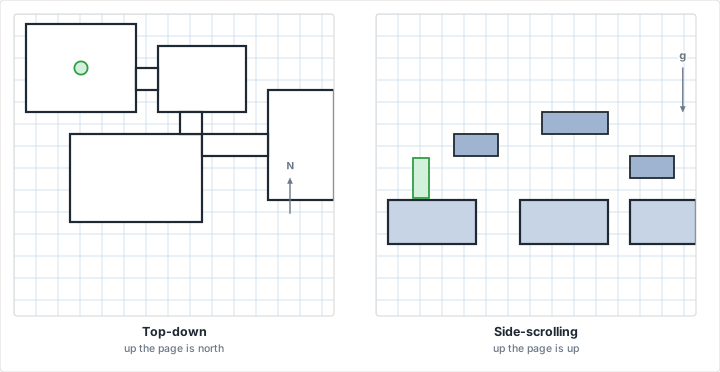
The camera perspective changes what the grid represents, and getting this straight before you draw prevents confusing layouts later.
Top-Down Levels
In a top-down game (overhead dungeon crawlers, twin-stick shooters, classic adventure games), the graph paper is a literal floor plan. The X axis is east and west, the Y axis is north and south, and gravity is not part of the layout. You draw rooms, corridors, doors, and the connections between them exactly as a map. This is the most intuitive use of graph paper because the page is a direct overhead view of the playable space.
Side-Scrolling Levels
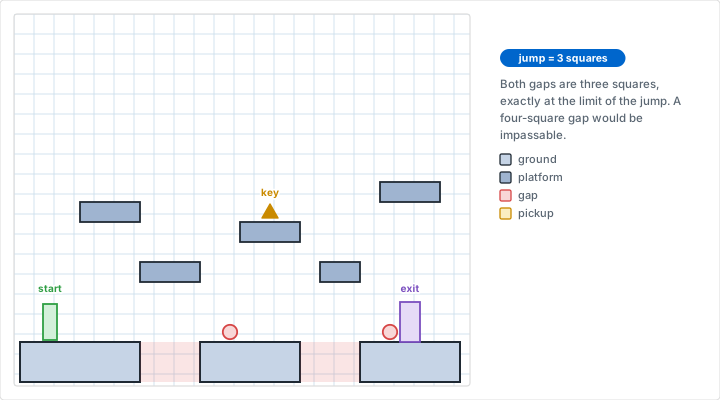
In a side-scroller (platformers, run-and-gun games, Metroidvania titles), the X axis is horizontal travel and the Y axis is height. Now gravity matters. A gap between two platforms must be a distance the player can actually jump, so your grid has to encode jump reach. Establish your character's jump arc in squares early: for example, the player can clear a 4-square gap and rise 3 squares at the peak of a jump. Once you fix those numbers, every platform spacing on the page becomes a real, testable constraint.
Chart Your Jump Curve First
On a scrap sheet, draw the player's maximum jump as a curve across the grid: how many squares forward and how many up. Keep that sheet beside you while designing platform levels. Every gap and ledge you draw can then be checked against the curve, so you never design a jump that is physically impossible or trivially easy.
Blocking Out Rooms and the Critical Path
Start with structure, not detail. Block out the major spaces and the route through them before you place a single enemy or pickup.
Rough the Rooms
Lightly outline each major room or area as a rectangle of squares. Do not commit to exact dimensions yet; you are establishing how many spaces exist and roughly how big each one is. Number them so you can refer to them ("Room 3 connects to Room 5"). Leave the interiors empty for now.
Draw the Critical Path
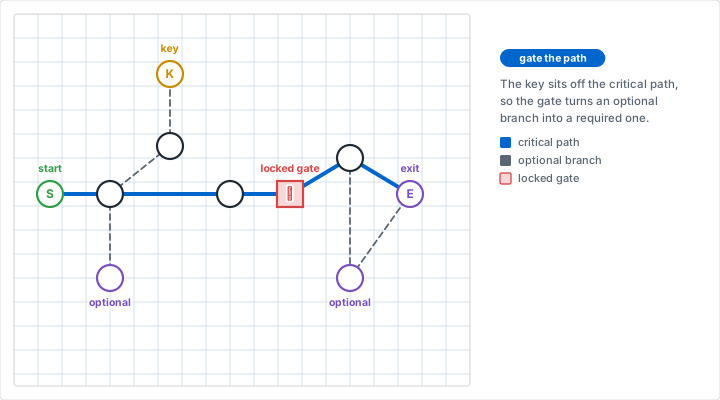
The critical path is the route a player must take to finish the level, from entrance to exit. Draw it as a bold line threading through your rooms. This line is the backbone of the level. Everything else, optional rooms, secrets, side loops, hangs off it. If the critical path is a straight line with no choices, the level will feel like a hallway. If it loops back on itself and branches, the level will feel like a place.
Add Optional Space
Branch side rooms off the critical path for rewards, secrets, and exploration. Mark which branches are dead ends and which loop back. A good rule: reward exploration but never punish it with a long backtrack that leads nowhere. Use a different line style (dashed, for instance) for optional routes so the page stays readable.
Pacing and Gating
Pacing is the rhythm of the level: tension and release, danger and safety, new mechanics and familiar ones. Gating is how you control the order in which the player experiences that rhythm.
Lock-and-Key Gating
The classic gate is a locked door and a key. On your grid, mark each locked door with a symbol and each key with a matching symbol. Trace the path: the player must reach the key before the door. Drawing this on paper makes broken gating obvious. If your only path to the key passes through the door it unlocks, you have a softlock, and you can see it on the page before you ever build it.
Ability Gating
Metroidvania design gates progress behind abilities rather than keys. A high ledge is impassable until the player finds the double jump; a flooded passage is blocked until they get the swim upgrade. On graph paper, mark each ability gate with the ability it requires, and verify that the player obtains that ability earlier on the critical path. The grid lets you confirm that every gate is reachable in the intended order.
Pacing check: Walk the critical path with a pencil and label each room as a high-intensity beat or a low-intensity beat. If you see four high-intensity rooms in a row with no rest, the level will exhaust the player. Insert a calm room, a save point, or a reward to reset the tension.
Placing Enemies, Pickups, and Spawns
Once the structure and pacing are set, populate the level. This is where a symbol legend becomes essential.
Build a Symbol Legend
Assign a clear symbol to each element and write the legend in the margin so anyone (including future you) can read the map. A practical starter set:
- S -- player spawn or level entrance
- X -- level exit or goal
- E -- standard enemy (add a number for enemy type, E1, E2)
- B -- boss or miniboss
- K -- key, with a matching mark on the door it opens
- P -- pickup or item (health, ammo, currency)
- A -- ability or power-up upgrade
- C -- checkpoint or save point
- ? -- secret or hidden area
Think About Sightlines and Spacing
Place enemies where their position creates an interesting decision, near a ledge the player must reach, guarding a pickup, or positioned to ambush after a blind corner. Avoid clustering everything at the entrance; spread encounters along the critical path to control difficulty. Mark spawn points and respawn triggers explicitly, because where a player reappears after death is a design choice, not an afterthought.
Tilemaps and Collision Grids
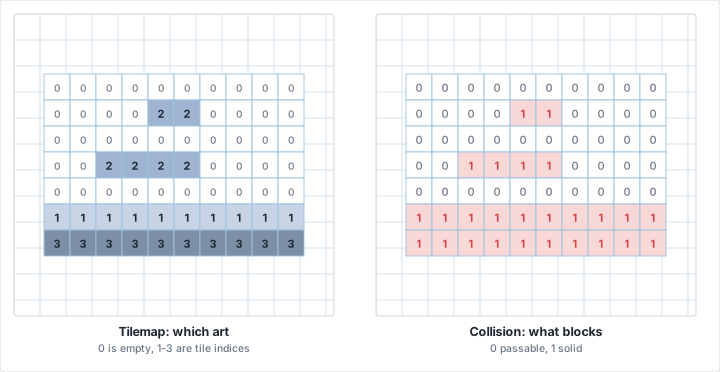
Graph paper is a natural fit for the two grids every tile-based game needs: the visual tilemap and the collision map.
Sketching the Tilemap
The tilemap is the layer of art tiles the player sees: floors, walls, decorations. On graph paper you do not need final art, just which kind of tile goes in each square. Use a light shorthand: a diagonal fill for solid wall tiles, a dot for floor, a wavy line for hazard tiles like spikes or lava. This is closely related to working at the pixel level, and our guide to creating pixel art on graph paper covers the per-tile detail that fills in once the layout is set.
Marking the Collision Grid
Collision is separate from art. A tile can look like a wall but be passable, or look like background but block the player. On a copy of your layout, shade every square that is solid collision. This collision sheet is exactly what you will recreate in the engine's collision layer, and keeping it separate from the art sketch prevents the common bug where a level looks right but plays wrong because collision does not match the visuals.
Use One Sheet Per Layer
Print your blocked-out layout, then trace or recreate it across several sheets, one for collision, one for art tiles, one for entities (enemies, pickups, spawns). This mirrors how engines store levels as separate layers and makes the eventual transfer into the editor almost mechanical.
Isometric and Hexagonal Levels
Not every game uses a square top-down or flat side view. Two other grids show up constantly in game design, and matching your paper to the game's grid saves enormous trouble.
Isometric Levels
Isometric games (tactics titles, city builders, many action RPGs) present a 3D-looking world on a 2D grid viewed at an angle. Designing these on square paper distorts your sense of distance and elevation. Instead, use an isometric grid, where the printed angles match the game's projection. Diamonds replace squares as the basic cell, and a structure you draw will look in proportion to how it will appear in the engine. Mark elevation changes (stairs, raised platforms, drops) clearly, since height is part of isometric gameplay and is easy to lose track of on a flat page.
Hexagonal Levels
Strategy games, turn-based tactics, and many board-game-inspired digital titles use hex grids because hexagons give six equidistant neighbors instead of a square's awkward mix of four orthogonal and four diagonal moves. Design these on hexagonal graph paper so movement ranges, line of sight, and terrain placement map directly to the in-game grid. If your project sits at the border between digital and tabletop strategy, our notes on designing board games on graph paper cover hex movement and balance in more depth.
Playtesting on Paper
You can test a level before you build it. Paper playtesting catches structural problems while they are still free to fix.
Walk the Level With a Token
Use a coin or a pencil tip as the player. Move it from the spawn along the critical path, square by square, narrating what happens: "jump the 3-square gap, land, fight enemy E1, grab the key." Doing this slowly exposes problems an editor would hide, gaps that are one square too wide, a key placed after its door, a dead-end branch with no reward.
Check Reachability and Flow
Confirm that every required room is reachable in the intended order, that no gate locks the player out of progress, and that the difficulty rises and falls rather than spiking randomly. Ask a friend to walk the level too. They will take routes you did not anticipate, which is exactly the kind of insight you want before committing engine time.
Number Your Iterations
Date and number each draft (Level 1, v3). When a later version plays worse than an earlier one, you can return to the better layout instead of trying to reconstruct it from memory. Cheap paper makes keeping a full history painless.
From Paper to Engine
Once a layout survives paper playtesting, transferring it into a tile-based engine is mostly transcription, because you designed in the engine's grid from the start.
Tiled and Generic Tilemaps
Tiled is a widely used, open map editor that exports tilemaps most engines can import. Set Tiled's grid to your tile size, then recreate your sheets layer by layer: collision layer from your collision sheet, tile layers from your art sketch, an object layer for spawns and pickups from your entity sheet. Because one paper square equals one tile, the placement is one-to-one.
Godot and Unity Tilemaps
Godot's TileMap and Unity's Tilemap systems work the same way. Define a tile set, then paint your paper layout into the grid. Your annotated entity sheet tells you where to drop enemy nodes, item prefabs, and spawn markers. The collision sheet becomes the physics layer. Keep your paper maps beside the screen as you build; they are the authoritative source, and the editor is just where you make them real.
Working this way means your engine time goes to what engines are good at, tuning movement feel, wiring up logic, polishing art, rather than discovering halfway through that the level's basic structure does not work. If you are still new to thinking in grids, our overview of what graph paper is and how its grid works is a useful primer before you start.
Common Mistakes
Mistake 1: Designing in the Engine First
Problem: Jumping straight into the level editor and building geometry before the structure is proven. You spend an hour placing tiles, then realize the level is a boring hallway, but now you are reluctant to scrap an hour of work.
Fix: Block out and playtest the layout on paper first. When you open the editor, you are transcribing a level you already know is good, not discovering its problems in the most expensive place to fix them.
Mistake 2: Mismatched Grid Scale
Problem: One sheet uses 1 square = 1 tile, another uses 1 square = 4 tiles, and the scales get mixed. A room that looked balanced is four times too large in the build.
Fix: Label the scale on every single sheet. Keep detailed rooms at 1 square = 1 tile and use a clearly marked overview sheet for the zoomed-out map. Never assume scale, read it off the page.
Mistake 3: Broken Gating and Softlocks
Problem: A key is placed behind the door it unlocks, or an ability gate sits before the player can obtain the ability. The player gets stuck with no way forward.
Fix: Trace the critical path with a token and verify every key precedes its door and every ability precedes its gate. Paper makes these dependency errors visible before they become bug reports.
Mistake 4: Confusing Art With Collision
Problem: The level looks correct but plays wrong, the player walks through a wall or gets stuck on invisible geometry, because the collision map was never planned separately from the visual tiles.
Fix: Keep a dedicated collision sheet. Shade every solid square independently of the art, and recreate that exact shading in the engine's collision layer.
Tips for Better Levels
Design in Pencil
Always draft in pencil so you can erase and reroute freely. Ink only the final layout once it has survived a playtest. Level design is iteration, and iteration needs an eraser.
Reserve a Symbol Standard
Use the same symbols across every level you design, S for spawn, X for exit, E for enemy. A consistent legend means you can read any of your maps instantly and hand them to a collaborator without explanation.
Mark Counting Lines
Heavier lines every 10 squares make it easy to measure distances and confirm jump gaps at a glance. Our generator's grid styles and engineering grid options can produce these bold reference lines automatically, turning the page into a built-in ruler.
Conclusion
Graph paper has shaped video game levels since the earliest dungeon crawlers, and it remains the fastest way to think in the grid that tile-based engines are built on. Map one square to one tile, block out your rooms and critical path, gate progression deliberately, populate with a clear symbol legend, and playtest with a token before you ever open an editor. The structural work is cheap on paper and expensive in software, so do it where it is cheap. When your layout survives a paper playtest, transferring it into Tiled, Godot, or Unity is the easy part, and your engine time is free for the polish that makes a level shine.
Ready to Design Your First Level?
Generate custom graph paper for your game. Choose square, isometric, or hexagonal grids, set your spacing and line weight, then print as many sheets as your level design needs.
Generate Custom Graph PaperRelated Resources
- How to Choose the Right Grid Size
- Isometric Graph Paper -- for angled isometric levels
- Isometric Drawing on Graph Paper -- true isometric versus the 2:1 tile ratio game engines actually use
- Hexagonal Graph Paper -- for hex-based strategy maps
- Creating Pixel Art on Graph Paper -- per-tile sprite and tile detail
- Designing Board Games on Graph Paper
- Drawing Dungeon Maps for Tabletop RPGs
- Graph Paper Use Cases Across Industries
- Designing and Solving Grid Puzzles on Graph Paper